You'll create a full-stack web app in pure Java. No HTML, no JavaScript, no REST plumbing. Just components, events, and instant hotswap.
Vaadin Quickstart
Build your first Java
web app in 5 minutes
web app in 5 minutes
Before you start
Make sure you have JDK and an IDE.
A Java™ Development Kit (JDK) 21 or 25
Liberica, Temurin, or any modern JDK.
An Integrated Development Environment (IDE)
Install one of the IDEs: IntelliJ IDEA, Visual Studio Code
or Eclipse
Step 1:
Download your starter
Click below to download a Spring Boot + Vaadin project starter.
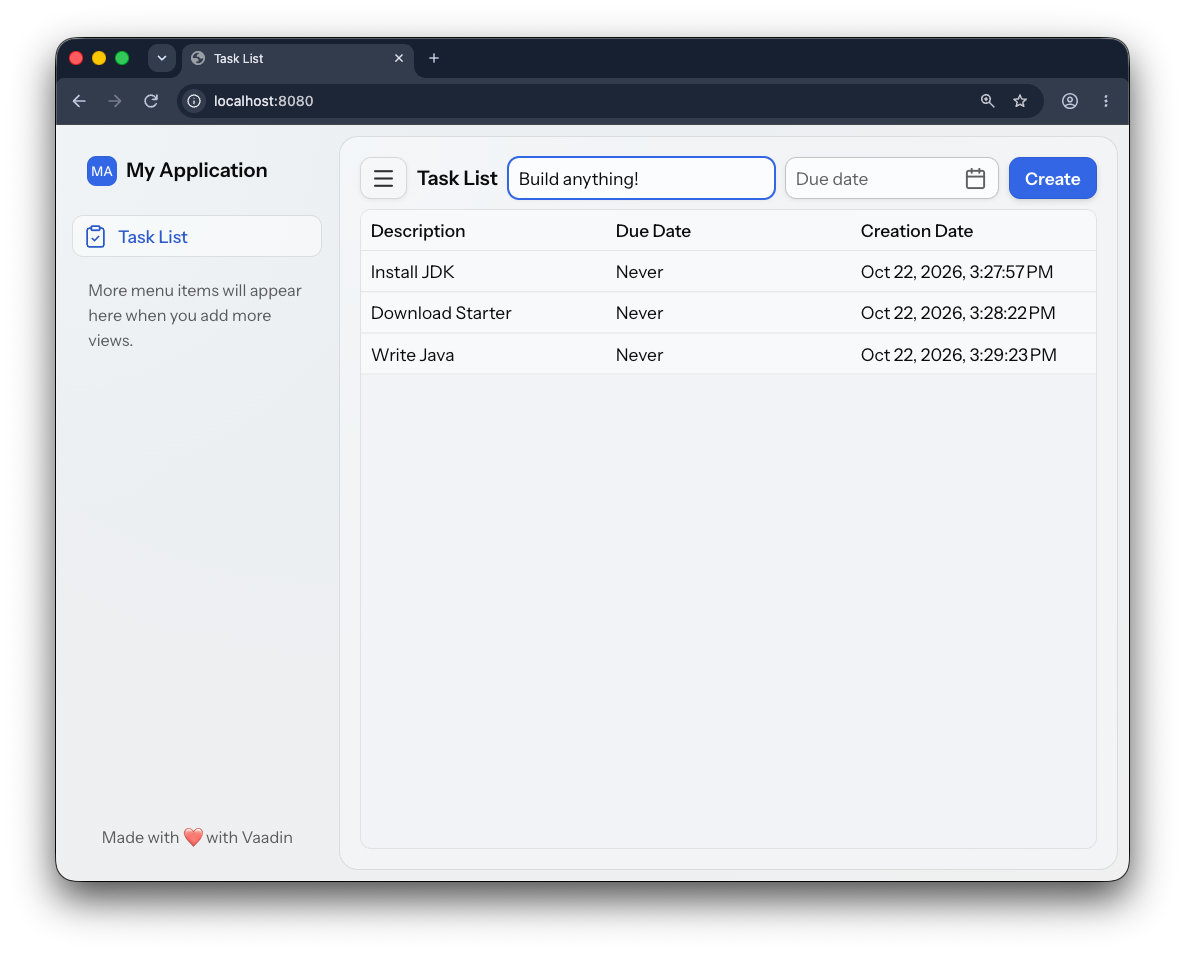
You'll get a ready-to-run Task List app: a data grid, a Create button, and an empty-state message.
The defaults are fine for this quickstart, you don't need to change anything.
Want to customize a project? Open start.vaadin.com configurator, to pick a project type, theme, or pre-built views.
Experienced Vaadin developers use it for every new project.
Step 2:
Open it in your IDE
Unzip the file and open the project folder in your IDE.
IntelliJ IDEA (recommended)
File → Open… and select the unzipped folder. IntelliJ detects the Maven project and imports dependencies automatically.
Visual Studio Code
Install the Extension Pack for Java, then File → Open Folder… and select the unzipped folder.
Eclipse
File → Import → Existing Maven Project and select the unzipped folder.
Step 3:
Install Vaadin plugin
The Vaadin plugin helps you develop faster with hotswap and direct browser-to-code updates.
IntelliJ IDEA (recommended)
Install the Vaadin plugin from IntelliJ's plugin marketplace. Settings -> Plugins -> Marketplace -> Vaadin.
After installation, run the App from: Debug using HotswapAgent.
Open http://localhost:8080. The first start takes ~30 seconds while Maven downloads dependencies. You should see the Task List app — a grid with Description / Due Date / Creation Date columns.
Visual Studio Code
Install the Vaadin extension from the VS Code marketplace, then run Vaadin: Debug using Hotswap Agent from the command palette (or right-click the Application.java class and select Debug using Hotswap Agent).
Open http://localhost:8080. The first start takes ~30 seconds while Maven downloads dependencies. You should see the Task List app — a grid with Description / Due Date / Creation Date columns.
Eclipse
Install the Vaadin plugin from the Eclipse Marketplace, then right-click the project → Run As → Vaadin Application.
Learn more from our documentation.
Open http://localhost:8080. The first start takes ~30 seconds while Maven downloads dependencies. You should see the Task List app — a grid with Description / Due Date / Creation Date columns.
Don't want a plugin?You can still run Vaadin applications with a plain mvn spring-boot:run
Step 4:
Make your first change
1. Open MainLayout.java. Make any change. For example, change the visible app nam new Span("My Application") to something different.
2. Save the file. You can immediately see the changes in the browser. The new name appears without a reload.
Don't see it? You're likely running without hotswap; restart the app using Debug using the Hotswap Agent.
Step 5:
Change your Java code from the browser
Vaadin Copilot is a visual, AI-empowered development tool built into dev mode.
You can inspect components, drag-and-drop, edit themes, or just ask in plain English.
1. Open Copilot in your running app and click Edit mode in the bottom-right corner toolbar.
or toggle it ⇧ + ⌘ ⌘ on Mac · ⇧ + Ctrl Ctrl on Windows / Linux (Hold Shift and tap ⌘ or Ctrl twice)
2. Click the AI prompt icon in the Copilot toolbar and try a prompt:
Copilot prompt:
Add "ID" as the first column
Copilot edits your Java source directly, re-runs hotswap, and your app updates in place.
Open TaskListView.java in your IDE - the new addColumn(...) line for "ID" is right there in the code.
First-time AI use: Copilot will ask you to sign in with a free Vaadin account. The visual tools (drag-drop, theme editor, inspector)
work without sign-in.
You're All Set! Where to next?
You just built a full-stack web app in Java.
Pick your next step. Build real apps with AI development tools, explore the components, and ship to production.
Connect with AI dev tools
Use Vaadin MCP server to connect Claude Code, Codex, or any AI assistant to Vaadin's docs and APIs for accurate, real-time guidance.
Use UI Java Components
Library of 50+ production-ready UI components, grids, forms, charts, and dialogs. All callable from Java.
Master Vaadin Copilot
Drag-and-drop UI editing, theme tweaks, and AI prompts without ever leaving the browser.